Author: counsell

  • How do headings work?

    How do headings work?

    Headings are used to highlight titles in sections of content for your site. In the drop down from the tool bar above the page or post that is being edited, you’ll see options for Paragraph (which is default, Heading 1, Heading 2, Heading 3, Heading 4, Heading 5, and Heading 6. You are able to highlight any text within your post or page and choose one of these heading options.

    Headings are primarily used for SEO purposes, and not necessarily for aesthetic reasons.  See this article from Yoast that explains how to properly use them.

  • How to adjust the post/page layout

    How to adjust the post/page layout

    You are able to choose the page layout you’d like to have across your site either to cover the entire site, or you can choose on a per page basis.  The layout options you have available are:

    Choose for your entire site

    In order to choose the layout option you’d like that covers the entirety of your site, you’ll navigate to GENESIS > THEME SETTINGS.  Once there you’ll scroll down to the DEFAULT LAYOUT box where you’ll see this:
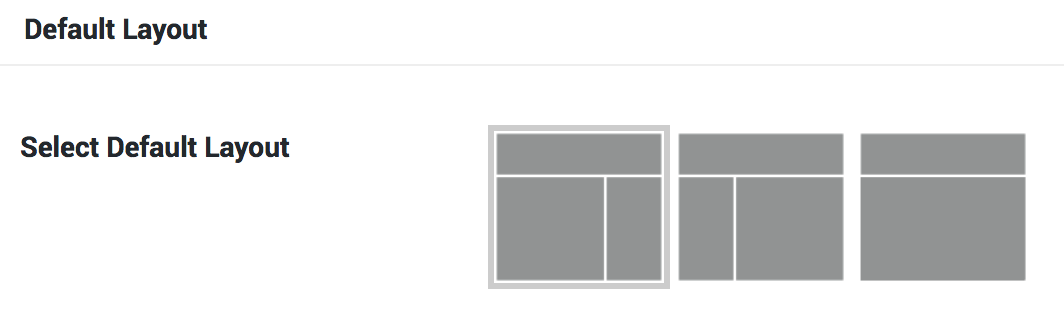
    You can simply click on the option you’d like from these little screen icons.

    Please note that in some of our themes we force a specific layout option on the home page occasionally for structural reasons.  If you are making changes here that aren’t affecting your home page or a custom page template on your site, it’s because it’s been forced to appear that way.

    Choose per page, post, or product

    If you’d like to have most of your site one layout but you’d like a specific page or post to appear differently, you can do that as well.  A great example of this is you want all your blog posts to have the content/sidebar format, but you want a lot of your pages to be full width.  You can see this displayed through our own site.

    To do this, navigate to PAGES/POSTS > EDIT the page/posts you’d like to change.  Once there scroll down a little bit until you see the LAYOUT SETTINGS and you’ll simply click the option you’d like from the little screen icons.
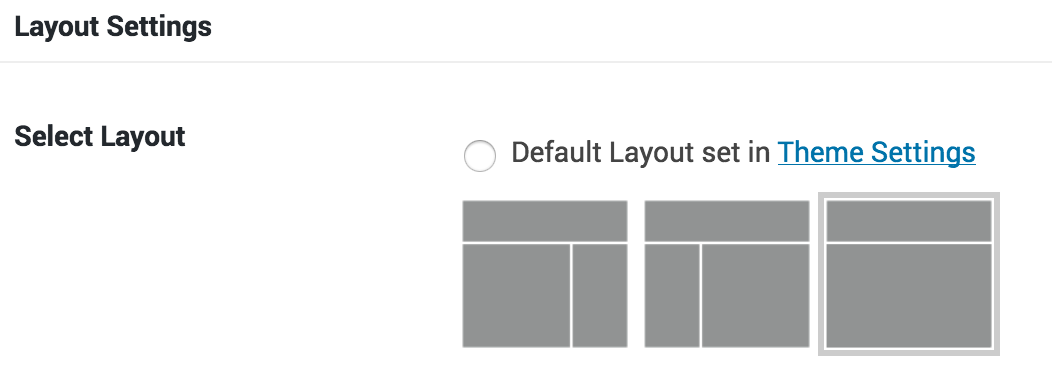
    If you are not seeing this box when editing a page or post, scroll all the way to the top and select SCREEN OPTIONS in that tab at the very top right corner of your screen.  It will drop down and you’ll just be sure the LAYOUT SETTINGS option has a checkmark next to it.  Now you’ll have that option available.

  • Post Content Features

    Post Content Features

    Blockquote

    Blockquotes are used to highlight quotes or specific aspects of your content are are styled to look different.

    This is a blockquote example.

    To add a blockquote to your own post or page, you’ll highlight your text and then use the icon on the toolbar when you’re editing a post that looks like a quote.

    Ordered List

    You can also add Ordered List to your posts/pages by highlighting your text and then using the icon on the toolbar that looks like 3 lines with little numbers next to it. An example of an ordered list is as follows:

    1. Ordered list item #1
    2. Ordered list item #2
    3. Ordered list item #3
    4. Ordered list item #4
    5. Ordered list item #5

    Unordered List

    You can also add Unordered List to your posts/pages by highlighting your text and then using the icon on the toolbar that looks like 3 lines with little dots next to it. An example of an unordered list is as follows:

    • Unordered list item
    • Unordered list item
    • Unordered list item
    • Unordered list item
    • Unordered list item